
Discord Rich Presence for League of Legends: Full Guide
Discord Rich Presence is the feature that shows your friends exactly what you're doing inside League of Legends — your champion, queue type, game time, and more. With the official Riot × Discord partnership, this integration is now deeper than ever.
What Is Rich Presence?
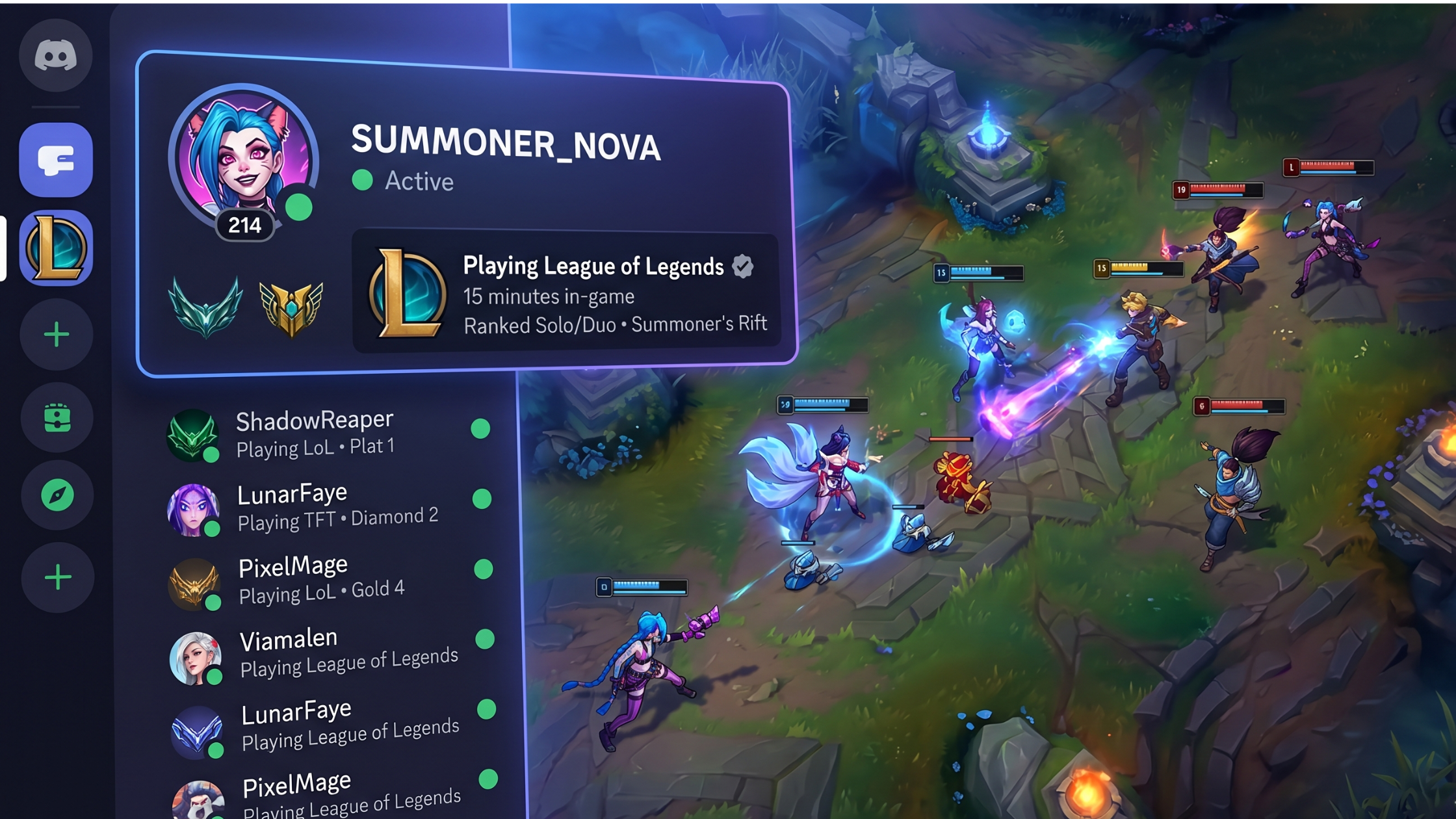
Rich Presence is Discord's system for displaying detailed activity information from games. Instead of just showing "Playing League of Legends", your status card can display the champion you're playing with portrait art, the queue type (Ranked Solo/Duo, ARAM, Normal Draft, URF, etc.), elapsed game time, score and KDA in supported modes, and whether you're in Champion Select or in-game.
How to Enable Rich Presence for League of Legends
Method 1: Auto-Detection (Default) Discord automatically detects League of Legends when the game is running. No setup needed. As long as Discord is open (minimised is fine), League is running, and you haven't disabled activity status in Discord settings — your status will automatically update.
Method 2: Verify via Game Detection Settings If Rich Presence isn't showing, open Discord → Settings → Game Activity (under Activity Settings). Make sure "Display currently running game as a status message" is toggled ON. Check that League of Legends appears in the Added Games list. If not, click "Add it!" and browse to your LoL executable.
What Your Friends See
When you're actively in a League game, a friend or server member viewing your profile card sees your champion portrait and name (e.g. Playing Jinx), the queue type (Ranked Solo/Duo), elapsed game time (e.g. 14:32), and a Spectate button if you've enabled it.
In voice channels, your activity status shows next to your name so squad members can coordinate without asking "are you in game?"
The Spectate Button
When Rich Presence is active, Discord can display a Spectate button on your profile card. Clicking it copies your spectator command, letting friends watch your game live in the LoL client. It's enabled by default. To disable it, go to Discord Settings → Game Activity → toggle off the Spectate Button option.
Rich Presence in Servers
As a server owner, Rich Presence data is surfaced in the member list sidebar (shows activity icons for members in game), in voice channel user cards (shows champion and game status), and on profile hovers (shows the full Rich Presence card).
This is powerful for LoL community servers — at a glance you can see how many of your members are currently in ranked games.
Privacy Controls
You control exactly what's shared. The Game Activity toggle in Discord Settings acts as the master switch for all Rich Presence. The Connections page lets you show or hide your rank on profile cards. And you can toggle the Spectate button on or off at any time.
Differences: Rich Presence vs. Linked Account
These are two separate features that work together. Rich Presence shows your live game status and is auto-detected from the game running. Your Linked Riot Account shows your profile rank and history and must be set up manually once in Connections. Rich Presence updates in real time while your linked account rank syncs periodically.
Troubleshooting Rich Presence
Status shows "Playing League of Legends" but no details: Wait 30-60 seconds after starting a game — details load after champ select. On macOS ensure Discord has permission to read running processes in System Preferences → Security.
No status at all: Check Settings → Game Activity is ON, restart Discord after starting LoL, or try running Discord as Administrator on Windows.
Wrong champion or game mode shown: This is occasionally a delay and catches up within 60 seconds. If persistent, try re-linking your Riot account.
Combining Rich Presence with a linked Riot account gives you the fullest Discord gaming identity. Your rank is always on your profile, and while you're in game your friends see exactly what you're doing in real time.


Comments
Sign in to join the conversation
Sign inNo comments yet
Be the first to share your thoughts!