
Gamifying Server Loyalty: How to Design and Deploy Custom Role Icons
A member has been active in your Discord server for six months. They have helped new arrivals, answered questions, joined events, and contributed to the community almost every week. But when they open the member list, there may be very little to distinguish their contribution from that of someone who joined yesterday.
That is where visual recognition can make a difference.
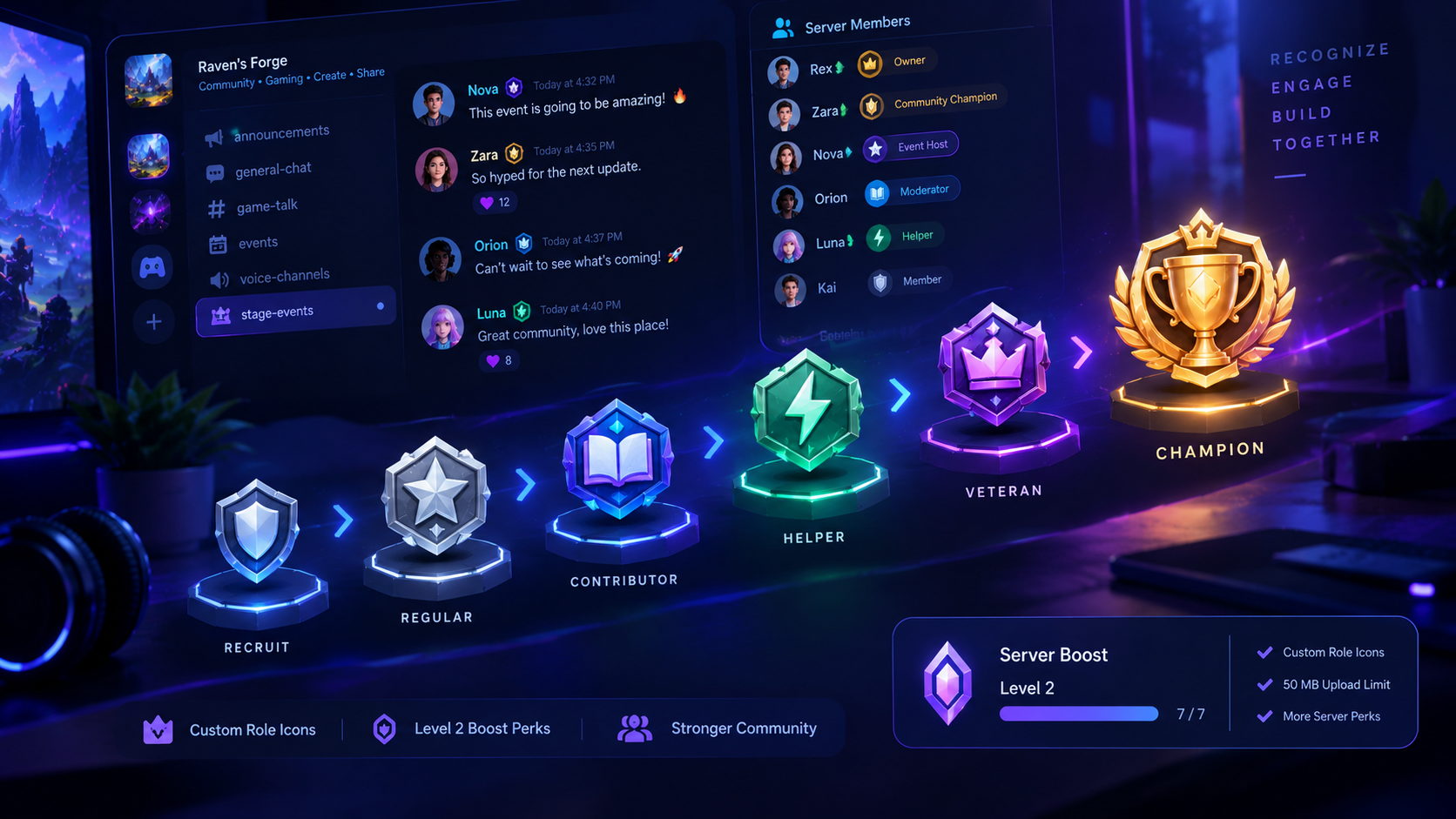
Discord custom role icons let eligible servers attach small images to roles, giving members a visual marker of their status. A well-designed icon can represent a community rank, an event achievement, a trusted helper role, or membership in a special group. The icon appears alongside role information in supported areas of Discord, making server roles easier to recognize at a glance.
For community managers, this creates an opportunity to make progression more visible. Instead of relying entirely on role names and colored labels, a server can build a consistent visual language that rewards participation and helps members understand where they fit.
There is one important distinction, though: icons do not automatically increase engagement. They work best when they represent something members genuinely value, and when the server pairs them with fair role criteria, useful community activities, and recognition that goes beyond posting for points.
This guide explains how to unlock the feature, design icons that remain legible at a tiny size, assign them to roles, and build a loyalty system that encourages meaningful participation rather than message spam.
1. What Are Discord Custom Role Icons?
Custom role icons are small images attached to Discord server roles. They give roles a recognizable visual identity beyond a name or role color.
Imagine a gaming community with the following roles:
New Recruit: a simple shield.
Regular: a small silver star.
Veteran: a polished gold emblem.
Community Helper: a distinctive support symbol.
Event Champion: a trophy.
Founding Member: a unique crest reserved for the server's earliest supporters.
These icons make the role system easier to scan and can give members a visible reminder of their contributions.
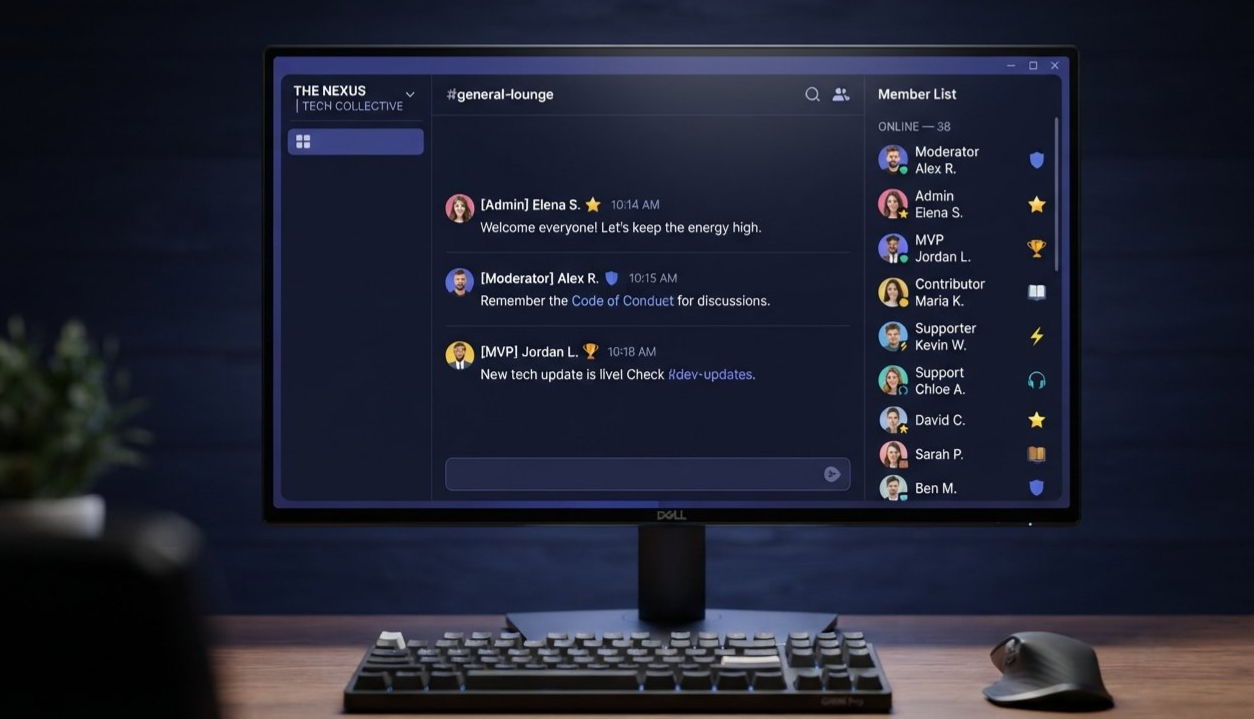
According to Discord's official Custom Role Icons FAQ, icons can appear in the member list beside role names, next to usernames in chat, and within a member's server profile. Discord displays only one role icon beside a member's name in the member list and chat. If someone has several roles with icons, the highest applicable role in the server's role hierarchy determines which icon appears there. Other role icons can still be viewed in the member's server profile.
That means role hierarchy is part of your icon strategy. Creating ten beautiful icons is not enough if members cannot tell which one represents their primary status.
Why visual status can matter
A role name communicates information. A distinctive icon can make that information easier to recognize.
For a community, the benefits may include:
Faster recognition. Members can identify helpers, event participants, or experienced contributors more quickly.
A stronger identity. A coordinated icon set makes the server's roles feel like parts of one community rather than an unrelated list of labels.
Visible achievement. An icon can mark a milestone that a member worked toward, such as completing a community challenge or contributing to an event.
Better role discovery. A consistent visual system can help new members understand which groups or responsibilities exist in the server.
Icons are not a replacement for clear permissions or role descriptions. A decorative badge should never be the only way members learn whether someone is a moderator, staff member, or trusted helper.
2. Unlocking the Level 2 Server Boost Perk
Custom role icons are a server-level perk, not a feature that every server can freely upload at any time.
Discord's current Server Boosting FAQ lists custom role icons among the perks available at Level 2, which requires 7 Server Boosts. The server must maintain the applicable boost level for the perk to remain active.
Before planning an icon rollout, check the server's current boost status and confirm that the team has permission to manage roles.
What Level 2 means for your community
Level 2 includes custom role icons alongside other server perks. Depending on your server's needs, those additional benefits may also support your community experience, but custom icons should be evaluated on their own merits.
A server should not ask members to boost solely because icons are available. Instead, explain what the server offers overall, what the boost supports, and how the community benefits.
What happens if the server loses Level 2?
Discord's Custom Role Icons FAQ explains that uploaded icons remain saved if the server loses the necessary boost level, but they will no longer display in the server until Level 2 is regained.
This is worth considering before you build a loyalty system around icons. Avoid making access to important community information depend on a cosmetic feature that can disappear when the server's boost level changes.
Check these requirements before starting
The server has reached Level 2.
You have the Manage Roles permission.
The images are static and meet Discord's size and file requirements.
Your role hierarchy is organized so that important icons display as intended.
The server has a clear plan for what each role represents.
Official reference: Discord Server Boosting FAQ
3. Designing Icons That Work at 64 × 64 Pixels
A role icon is tiny. Artwork that looks impressive at full size can turn into an indistinguishable blur when displayed beside a username.
Discord's official requirements for uploaded role-icon images are 64 × 64 pixels, with a maximum file size of 256 KB. Use a static image; animated role icons are not supported.
The most important design principle is simple: create for the size at which the icon will actually be seen.
Start with one clear symbol
A good role icon should communicate one idea.
For example:
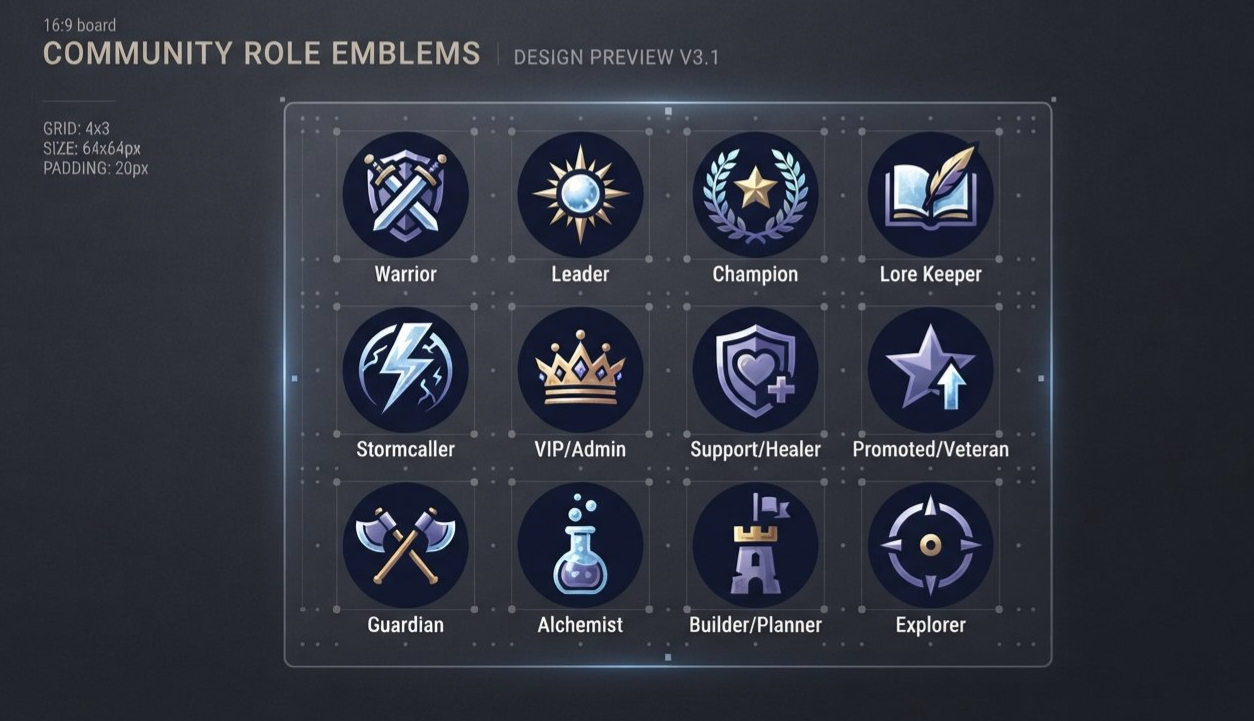
| Role purpose | Icon concept | Suggested visual treatment |
|---|---|---|
| New member | Shield | Simple outline and one central shape |
| Active regular | Star | Bold silhouette with limited detail |
| Veteran | Crown | Distinctive crown shape |
| Community helper | Lifebuoy or hands | Clear support symbol |
| Event winner | Trophy | Strong central silhouette |
| Creator | Spark or pen | Simple creative symbol |
| Founding member | Crest | Unique emblem with a recognizable outline |
| Tournament competitor | Crossed swords | Simplified shapes with generous spacing |
These are design concepts, not official Discord icons. Adapt them to your server's theme and ensure that each role remains distinguishable from the others.
Use a consistent visual language
An icon set feels intentional when its members share a design system.
Choose a small color palette, consistent line weight, similar lighting, and a common level of detail. For example, a fantasy gaming community could use metallic emblems and jewel tones, while a study server might prefer flat geometric symbols with calm colors.
Consistency does not mean every icon should look identical. Each icon still needs its own silhouette.
Prioritize contrast
Tiny artwork loses detail quickly. Avoid thin lines, busy textures, and small letters. Make sure the symbol stands out against both light and dark surroundings.
A useful test is to view the icon at its final 64 × 64 resolution before uploading it. If you cannot identify the symbol without zooming in, simplify it.
Do not use text as the main symbol
A two-letter abbreviation may seem useful, but it is often harder to read than a recognizable graphic. At this size, a simple trophy or shield will usually communicate more quickly than a tiny word.
If you need to distinguish several roles in the same category, use different shapes or silhouettes rather than relying only on small text.
Design around the server's theme
A coordinated set can make the server feel more memorable:
Gaming server: ranks, weapons, trophies, elemental symbols, and class emblems.
Creator community: cameras, microphones, pencils, stars, and creative tools.
Study server: books, graduation caps, lightbulbs, and achievement symbols.
Tech community: chips, circuit symbols, gears, and simplified devices.
Fitness community: dumbbells, medals, flames, and progress markers.
Keep the artwork original or use assets that you have permission to use. Avoid copying another community's distinctive branding or using copyrighted characters as if they were your own role designs.
Recommended export workflow
Create the artwork in a square canvas.
Keep the main symbol centered with enough padding around the edges.
Reduce the artwork to 64 × 64 pixels.
Inspect the result at its actual display size.
Export a static PNG.
Confirm that the file is no larger than 256 KB.
Preview the icon against a dark background and, where possible, a light background.
A transparent background can help the icon integrate cleanly into the interface, but it is not a substitute for good contrast.
4. Building a Role Progression System
The most effective loyalty systems connect a visible reward to a meaningful contribution.
If every member receives a prestigious icon immediately, the icon may have little meaning. If the requirements are impossible to understand or feel unfair, members may stop caring about progression altogether.
A useful role structure should answer three questions:
What does this role represent?
How can a member earn or receive it?
What changes when the member receives it?
Example: A five-stage community system
| Role | Example criteria | Icon idea |
|---|---|---|
| Newcomer | Joined the server | Simple shield |
| Regular | Participated constructively over time | Star |
| Veteran | Consistent involvement over several months | Crown |
| Community Contributor | Helped with guides, events, or useful answers | Open book |
| Community Champion | Exceptional contribution or event achievement | Trophy |
This is a sample framework. The time periods and requirements should be adapted to the server rather than copied blindly.
Notice that the roles are not all based on message counts. Someone who writes a clear troubleshooting guide or organizes a community event may contribute more value than someone who posts hundreds of one-word messages.
Reward different kinds of contribution
A strong community recognizes more than activity volume.
Consider separate paths for:
Consistency: Members who participate constructively over time.
Helpful contributions: People who answer questions, write guides, or welcome newcomers.
Event participation: Members who join tournaments, discussions, challenges, or community activities.
Creative work: Artists, developers, writers, and other contributors who share useful work.
Leadership: Trusted members who take responsibility for community projects or help keep discussions welcoming.
You do not need a separate role for every activity. Start with a few categories that reflect the server's actual culture, then add more only when there is a clear reason.
Make the rules visible
Publish a short explanation of how members earn each role. If staff assign a role manually, explain who reviews contributions and how decisions are made.
Avoid promising that a particular number of messages automatically guarantees a prestigious role unless that is genuinely how your system works.
Clear criteria make rewards feel earned rather than arbitrary.
Keep staff roles separate from achievement roles
A cosmetic achievement should not accidentally imply administrative authority.
If a member earns a trophy icon for winning a tournament, that does not mean they should receive moderation permissions. Keep the role's purpose and permissions aligned, and make it clear when an icon represents recognition rather than responsibility.
5. How to Upload and Assign Custom Role Icons
Once the design system is ready and the server has the required boost level, the next step is attaching each image to its role.
Discord's official FAQ describes icon management on the desktop version of the app. Members with the Manage Roles permission can set, change, or remove role icons.
Step 1: Open Server Settings
Open the server in Discord and navigate to Server Settings.
Step 2: Select Roles
Open the Roles section and choose the role you want to customize. Start with one role and confirm that the icon works before uploading the entire set.
Step 3: Find the Display section
Within the role settings, look for the Display section and the Role Icon field.
Step 4: Choose an icon
Discord allows eligible role icons to use a supported emoji or an uploaded image. Choose the option that suits your design.
If you upload an image, check that it is static, 64 × 64 pixels, and no larger than 256 KB.
Step 5: Save and preview
Save the role settings, then check the result in the member list, chat, and server profile where the icon is supported.
If a member has several roles with icons, inspect the role hierarchy to understand which one is displayed next to their name. The hierarchy affects which role icon takes priority.
Step 6: Repeat consistently
Upload the rest of your icon set, using the same naming and design conventions. Keep a simple record of which image belongs to each role so future updates do not accidentally replace the wrong icon.
Step 7: Review the experience
Ask a few community members to check whether the icons are recognizable and whether the role names are understandable. If multiple icons look nearly identical at their actual display size, revise the designs before expanding the system.
Troubleshooting checklist
The icon does not appear: Confirm that the server has the required boost level and that the icon was saved to the intended role.
The upload fails: Check the image dimensions, file size, and format. Keep the image static and within Discord's documented requirements.
A different icon appears beside a username: Check the member's role hierarchy. Discord displays one applicable role icon in chat and the member list, prioritizing the highest role with an icon.
The icon is hard to recognize: Simplify the artwork, increase contrast, and test it at 64 × 64 pixels.
The icon disappears after a boost-level change: Check the server's current boost level. Discord states that uploaded icons remain saved but stop displaying until Level 2 is regained.
Official reference: Custom Role Icons FAQ
6. Using Icons to Encourage Meaningful Engagement
Custom role icons can support a sense of progress, but they are only one part of a community engagement strategy.
The icon itself does not make someone loyal. The meaning behind the role does.
If a member earns a recognizable badge after contributing a helpful guide, winning a tournament, or supporting newcomers, the icon becomes a reminder of a real achievement. If it is awarded simply for flooding chat, it can reward the wrong behavior.
Use milestones that matter
A progression system should give members achievable goals without making the server feel like a job.
For example, a gaming server could recognize players who join recurring events, contribute strategy guides, or help new members learn the game. A developer community could recognize people who provide useful troubleshooting answers, improve documentation, or share well-explained projects.
These milestones connect visible status to the kind of community you want to build.
Make achievements visible, not intrusive
A role icon can communicate recognition without requiring a public announcement every time a member earns something.
For larger achievements, a dedicated recognition channel can add context. Explain what the member did, why it mattered, and how others can participate in similar activities.
The combination of a small visual marker and a meaningful acknowledgement is often more useful than a badge with no explanation.
Give members more than one route to recognition
If every role requires posting frequently, you may unintentionally disadvantage members who prefer helping quietly, attending events, creating resources, or contributing less often but with greater depth.
Offer multiple ways to demonstrate value. A community becomes healthier when recognition reflects a range of useful contributions.
Avoid turning every conversation into a competition
A leaderboard can be useful for a short event or an opt-in challenge, but constant ranking may encourage low-quality posts, repetitive messages, and arguments over points.
If your goal is a more active server, optimize for meaningful participation rather than the largest possible message count.
Use icons as part of a wider experience
A role icon works best when it connects to other parts of the community:
A clear role description explains the achievement.
An event or activity gives members a way to participate.
A moderator or organizer reviews contributions fairly.
A recognition post celebrates meaningful work.
A useful next step helps members stay involved.
The icon becomes a visible part of the experience, not the entire experience.
7. Measuring Whether Your Loyalty System Works
It is tempting to judge success by total message volume alone. That metric can be misleading because a sudden increase in messages may reflect spam, arguments, or repetitive activity rather than a healthier community.
Track a small group of metrics that show whether members are participating and finding value.
Useful metrics to monitor
| Metric | What it helps you understand |
|---|---|
| Weekly active members | Whether more people are participating over time |
| Returning member rate | Whether members come back after their first visits |
| Event attendance | Whether community activities attract interest |
| Helpful contributions | Whether members are answering questions and sharing resources |
| Role progression | Whether members understand and value the recognition system |
| Message quality | Whether activity includes meaningful discussion rather than repetitive posts |
| Member feedback | Whether the roles feel fair, useful, and motivating |
Compare results before and after the role-icon rollout, but avoid attributing every change to icons alone. A popular game update, a major event, or a new moderation policy can also affect activity.
Run a small experiment first
Instead of redesigning every role at once, begin with a few roles that have a clear purpose.
For example:
Introduce a helper icon and a contributor icon.
Publish clear criteria for earning each role.
Explain the system in an announcement.
Track helpful answers, returning members, and feedback.
Review the results after a reasonable period.
Improve the criteria or icon design based on what members actually use.
This approach helps you discover whether the feature improves recognition without committing to a complex system before you know what works.
Protect the community from message farming
If rewards are tied to message volume, members may post unnecessary messages to reach the next level.
Use safeguards such as:
Rewarding quality and helpfulness rather than raw volume alone.
Excluding spam and repetitive messages from eligibility.
Having moderators review exceptional achievement roles.
Making rules clear and consistent.
Allowing members to report suspicious reward farming.
If you use bots to track activity or assign roles, check their current features and permissions before relying on them. Do not assume that every bot can accurately evaluate contribution quality.
8. Common Mistakes to Avoid
Mistake 1: Designing icons with too much detail
Intricate illustrations often become unreadable at 64 × 64 pixels. Start with a bold silhouette and remove details that do not survive at actual size.
Mistake 2: Making every role look equally prestigious
If every icon uses the same crown, glow, and gold treatment, members may struggle to distinguish the roles. Give each icon a recognizable shape and reserve the most elaborate treatment for the roles that genuinely warrant it.
Mistake 3: Rewarding spam instead of contribution
A system that counts every message equally can encourage low-quality posting. Consider helpfulness, event participation, creative work, and consistency alongside activity.
Mistake 4: Forgetting role hierarchy
Discord displays only one role icon next to a member's name in chat and the member list. Plan the hierarchy so the displayed icon communicates the intended status.
Mistake 5: Using icons as permission indicators without explanation
A decorative icon can look authoritative even when its role has no moderation privileges. Clearly separate cosmetic recognition from staff responsibilities.
Mistake 6: Making rewards impossible to earn
If a role requires months of activity without clear milestones, new members may never see a realistic path forward. Provide achievable early goals and meaningful long-term recognition.
Mistake 7: Ignoring the server's boost status
The server must maintain the required boost level for custom role icons to display. Plan how the community will communicate changes if the server loses Level 2.
Mistake 8: Treating icon rollout as a complete engagement strategy
Icons can help members recognize status, but they cannot replace useful conversations, welcoming moderation, well-run events, and a clear reason to return.
9. Frequently Asked Questions
What level is required for Discord custom role icons?
Custom role icons are a Level 2 Server Boost perk. Discord's current Server Boosting FAQ lists seven Server Boosts as the requirement for Level 2.
What size should a custom role icon be?
Discord's Custom Role Icons FAQ specifies 64 × 64 pixels and a maximum file size of 256 KB for uploaded images.
Can I use animated role icons?
No. Discord's official FAQ states that role icons support static images or static custom emoji, not animated icons.
Who can upload or change role icons?
Members with the Manage Roles permission can set, change, and remove role icons. Discord's official documentation says icon management is available on desktop.
Can a member display several role icons beside their username?
Discord displays only one role icon in chat and the member list. The highest applicable role in the server hierarchy determines which icon appears. Members can view their roles and icons through their server profile.
What happens if the server loses Level 2?
Discord states that the icons remain uploaded, but they stop displaying until the server regains Level 2.
Do custom role icons automatically increase message volume?
No. Icons can make recognition more visible, but they do not guarantee increased participation. Their impact depends on the value of the roles, the fairness of the criteria, and the overall quality of the community experience.
Should I base every role on message count?
Usually not. Message count can be one signal of activity, but it does not measure contribution quality by itself. Consider useful answers, event participation, creative work, and consistency so that different kinds of members have meaningful ways to contribute.
Can I use custom emoji instead of uploading an image?
Discord's role-icon settings allow supported emoji options as well as uploaded images. If you choose an emoji, remember that it must be available to the server under Discord's current rules.
10. Final Verdict: Make Every Icon Mean Something
Discord custom role icons are small, but a thoughtful system can give them a purpose beyond decoration.
A coordinated set can help members recognize contributors, understand community ranks, and celebrate achievements. For server owners, it offers a practical way to connect visual identity with participation and belonging.
The strongest approach starts with the community, not the artwork. Decide what you want to recognize, make the criteria fair, and design icons that remain clear at 64 × 64 pixels. Upload them only after confirming the server's boost level and permissions, then review the result in the places where members will actually see them.
Most importantly, do not confuse activity with loyalty. A server full of messages is not necessarily a healthy community. A server where members help one another, return for events, share useful work, and feel appreciated is a much stronger foundation.
Use role icons to make those contributions visible. When the reward represents something real, it can become a small but memorable part of why members choose to stay.
Official Sources and Further Reading
Custom Role Icons FAQ
https://support.discord.com/hc/en-us/articles/4409571023639-Custom-Role-Icons-FAQ
Official requirements, role hierarchy behavior, permissions, upload limits, and what happens if the server loses Level 2.Server Boosting FAQ
https://support.discord.com/hc/en-us/articles/360028038352-Server-Boosting-FAQ
Current boost requirements and the perks available at each server level.Discord Community Guidelines
https://discord.com/guidelines
Useful context for keeping community participation respectful and avoiding abusive or disruptive behavior.
Comments
Sign in to join the conversation
Sign inNo comments yet
Be the first to share your thoughts!