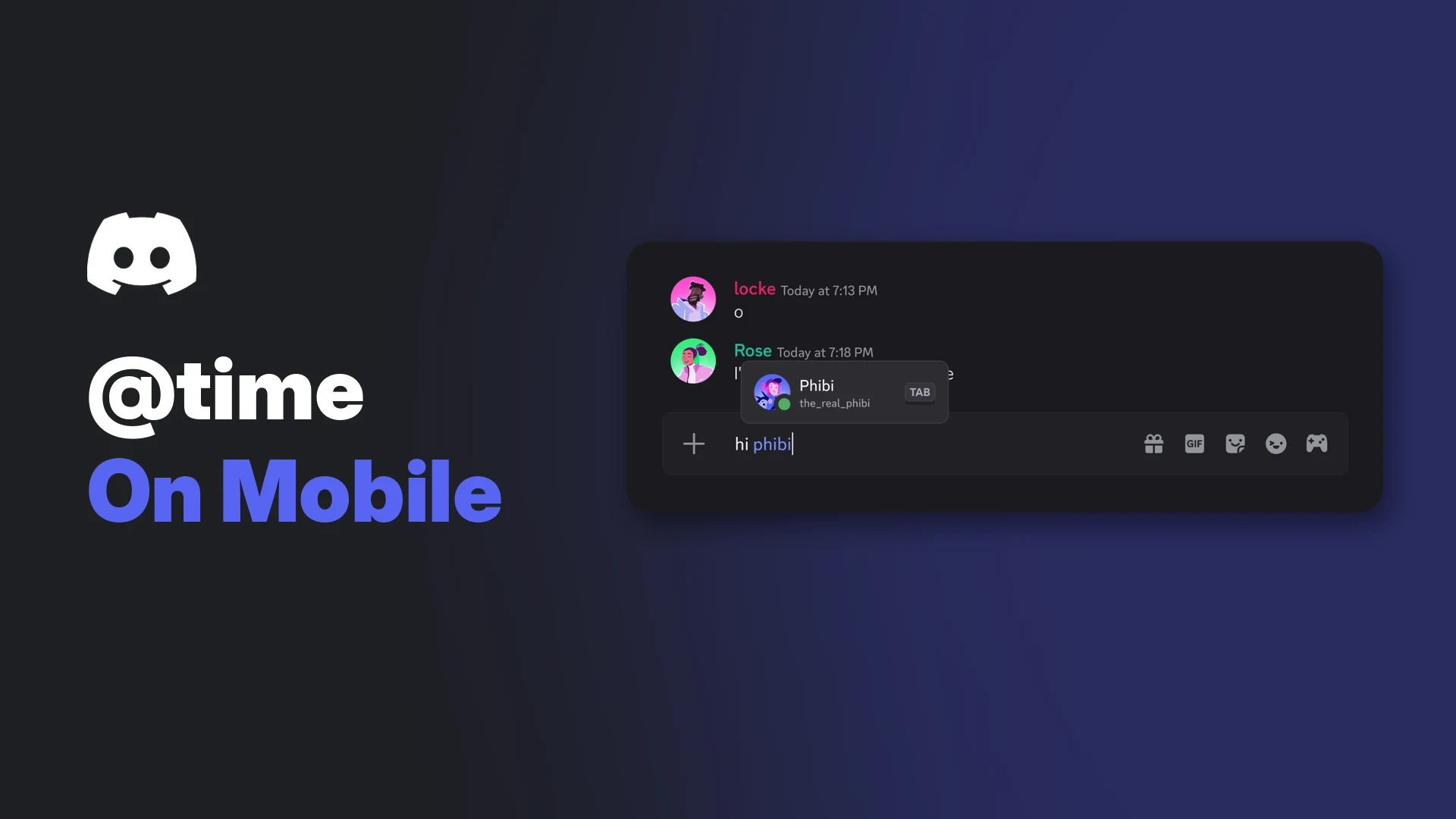

Discord time mentions fix one of the oldest problems in group chat: "8pm" means something different to every person reading it. With @time, you pick a moment once and Discord shows it to each reader in their own time zone. On 19 November 2026, Discord said the feature now works on mobile too.
That sounds small until you run a server with members in London, Mumbai and Los Angeles. One message can replace a lot of "wait, is that your time or mine?" replies.
This guide goes deeper than the short note in our Discord Changelog November 2026: Physical Gift Cards and More post. It covers how @time works, the steps on desktop and phone, every display style, practical uses, how it pairs with Scheduled Events, and the bugs Discord has already fixed along the way.
At a glance - What it is: a mention that shows a date or time in each reader's own time zone and locale. - What changed on 19 November 2026: Discord's update post says @time mentions are now on mobile. - Under the hood: the same
<t:UNIX:STYLE>timestamp code Discord documents for developers. - Styles: nine documented formats, from a plain time to a relative "in 2 hours" style label. - Not documented yet: no help centre article covers @time, so exact mobile menus are unconfirmed.
🕒 What Are Discord Time Mentions?
A Discord time mention is a timestamp that converts itself. You send one moment in time, and each person who reads it sees that moment in their local time and language format.
Discord's developer documentation describes the underlying format. A timestamp is written as <t:TIMESTAMP:STYLE>, where the timestamp is a Unix time in seconds, and clients display it in the reader's own time zone and locale.
@time is the friendly way to make one. Instead of looking up a Unix number, you type @time in the message box and pick from suggestions. Discord's own patch notes refer to the "@time pill" and to @time showing up in the autocomplete menu, which matches that flow.
The manual codes still work too. Our Discord Markdown wiki lists them.
📱 What Changed on 19 November 2026
Discord's Discord Update: November 19, 2026 post includes a short item headed "@time is now on Mobile". It says everyone sees the time in their own time zone, so you can set a meeting time with friends or server members while you are out.
That is the whole announcement. The post names mobile and nothing else, and it gives no steps, version numbers or rollout details.
Desktop already had @time before this. Discord's official X account promoted it on desktop in March 2026, and Discord's April 2026 patch notes fixed a desktop bug where the @time command kept a "NEW" badge in suggestions.
One third party guide, from Discord Timestamp Generator, says @time arrived in January 2026 and already worked on phones. Discord has not confirmed that date, and its own update treats mobile as new in November.
🖥️ How to Use @time on Desktop
Discord has no help centre article for @time yet. These steps follow Discord's patch notes plus one third party guide, so menu wording may differ on your app.
- Click into the message box in any channel, thread or DM.
- Type @time. Discord's autocomplete menu shows @time suggestions, as its September 2026 patch notes confirm.
- Keep typing a time if you want something specific. Discord Timestamp Generator says a phrase like "tomorrow at 8pm" updates the suggestions.
- Pick a suggestion. According to the same guide, options include full date, short date and relative time.
- Send the message. Discord shows the result as a pill that each reader sees in their own zone.
Discord's desktop message box with a mention suggestion pop-up. Discord has not published a screenshot of the @time picker itself. Image: Discord.
If you would rather build the code yourself, our Discord text formatter tool helps with message formatting before you paste it into chat.
📲 How to Use @time on Mobile
Discord's update confirms mobile support but does not describe the mobile menus. Based on the desktop flow and the third party guide, it should look like this:
- Open a channel or DM in the Discord app on iOS or Android.
- Type @time in the message box.
- Pick a suggested time, or keep typing a phrase to narrow the list.
- Send the message.
What is not confirmed: the exact menu layout on phones, which app version added it, and whether every account has it yet. If typing @time shows nothing, update the app and try again later, since Discord often rolls features out in stages.
One helpful detail: Discord's March 2026 patch notes fixed an Android bug that stopped people tapping timestamps in embeds to see the exact time. That suggests a tap on a timestamp reveals the full date and time on Android.
🗓️ Discord Time Mentions Display Styles
Every Discord time mention uses one of these styles. The examples below come from Discord's developer documentation, using one fixed moment (20 April 2021, 16:20:30). Your own app will show the time in your zone and language, so the wording can differ.
| Code | Style name | Example from Discord's docs |
|---|---|---|
<t:1618953630:t> |
Short Time | 16:20 |
<t:1618953630:T> |
Medium Time | 16:20:30 |
<t:1618953630:d> |
Short Date | 20/04/2021 |
<t:1618953630:D> |
Long Date | April 20, 2021 |
<t:1618953630:f> |
Long Date, Short Time (default) | April 20, 2021 at 16:20 |
<t:1618953630:F> |
Full Date, Short Time | Tuesday, April 20, 2021 at 16:20 |
<t:1618953630:s> |
Short Date, Short Time | 20/04/2021, 16:20 |
<t:1618953630:S> |
Short Date, Medium Time | 20/04/2021, 16:20:30 |
<t:1618953630:R> |
Relative Time | 4 years ago |
A few things worth knowing:
- No style letter means
f. Discord's docs mark it as the default. - Relative time counts for the reader. A future time reads like "in 2 hours", and a past one like "4 years ago".
- Seconds, not milliseconds. A 13 digit number from some tools will land far in the future.
For event posts, F plus R together works well: the full date for planning, and a countdown for urgency.
🎮 Practical Ways to Use @time
Time mentions earn their keep anywhere a group crosses time zones.
- Game nights: post "lobby opens" followed by an @time mention, and nobody has to do maths.
- Raids and scrims: a relative style gives everyone the same countdown, whatever their zone.
- Server events: put the time in announcements, rules channels and pinned posts.
- Friends abroad: plan calls across countries without asking "your time or mine?".
- Deadlines: giveaway end times, sign-up cut-offs and patch launches.
If you are setting up a server for this kind of play, our guide to setting up a gaming Discord server covers the channels and roles to build around it.
📅 Pairing @time With Scheduled Events
@time tells people when. A Scheduled Event tells them when, where, and reminds them. The two work best together.
Discord's help centre says members with the Create Events permission can make an event from the menu next to the server name.
The Create Event option in the server menu on desktop. Image: Discord.
Events have their own start date and time fields, and they appear in the server's Events list. Members who mark themselves as Interested get a notification when the event starts.
Setting a start date and time for a Scheduled Event. Image: Discord.
A simple routine for organisers:
- Create the Scheduled Event with the right date and time.
- Post an announcement that uses @time for the start, ideally in full date and relative styles.
- Link the event in the same message so people can mark Interested.
- Start the event on time. Discord's help centre says events that do not start within an hour of their scheduled time are removed automatically.
The event menu includes Add to Calendar and Copy Event Link. Image: Discord.
Our Discord events guide goes further on planning, promotion and follow up.
⚠️ Limits and Known Issues
@time is handy, but it has rough edges, and Discord's documentation is thin.
Undocumented areas:
- No help centre article explains @time, its menus or which fields support it.
- Discord has not said whether @time needs Nitro. The 19 November post does not mention Nitro.
- The mobile rollout schedule and minimum app versions are not published.
- What readers see depends on their device's time zone and locale, so a device set to the wrong zone will show a wrong local time.
Bugs Discord has fixed this year, according to its patch notes:
| Patch notes | Platform | Fix |
|---|---|---|
| 6 March 2026 | Android | Tapping timestamps in embeds now shows the exact time |
| 6 April 2026 | Desktop | @time no longer keeps a stuck "NEW" badge in suggestions |
| 4 June 2026 | Desktop | The @time pill no longer overlaps text when it wraps |
| 4 June 2026 | Android | Timestamp chips no longer show solid white on dark themes with the accessibility colour saturation slider turned down |
| 8 September 2026 | Desktop | @time no longer appears under the "matching members" header |
| 6 October 2026 | Android | Relative timestamps in push notifications now round consistently |
❓ FAQ
Are Discord time mentions available on mobile?
Yes. Discord's 19 November 2026 update says @time mentions are now on mobile. It does not list iOS or Android versions separately.
Do Discord time mentions show in everyone's own time zone?
Yes. Discord's developer docs say timestamps display in each reader's own time zone and locale.
Which style should I use for an event?
Full date (F) for the plan, and relative (R) for a live countdown. Many organisers use both in one message.
Does @time need Nitro?
Discord has not said. Its 19 November post does not mention Nitro for @time.
🎮 The Bottom Line
Discord time mentions take the guesswork out of planning across time zones, and @time on mobile means you no longer need a desktop to set one. The underlying timestamp format is well documented, even if the @time menus themselves are not yet.
For anything bigger than a quick chat plan, pair @time with a Scheduled Event so people get the time, the place and a reminder.
Will you switch your game night posts to @time, or stick with typing the codes yourself?
Sources
- Discord Blog: Discord Update: November 19, 2026
- Discord on X: @time on desktop (March 2026)
- Discord Developer Documentation: Message Formatting
- Discord Blog: Discord Patch Notes: March 6, 2026
- Discord Blog: Discord Patch Notes: April 6, 2026
- Discord Blog: Discord Patch Notes: June 4, 2026
- Discord Blog: Discord Patch Notes: September 8, 2026
- Discord Blog: Discord Patch Notes: October 6, 2026
- Discord Help Centre: Scheduled Events
- Discord Help Centre: Mention Suggestions FAQ
- Discord Timestamp Generator: How to Do a Timestamp on Discord



Comments
Sign in to join the conversation
Sign inNo comments yet
Be the first to share your thoughts!