

1. Optimize Windows System Settings
Windows comes pre-configured for everyday productivity, not maximum gaming performance. A few quick adjustments will prioritize your CPU and GPU resources exclusively for your games.
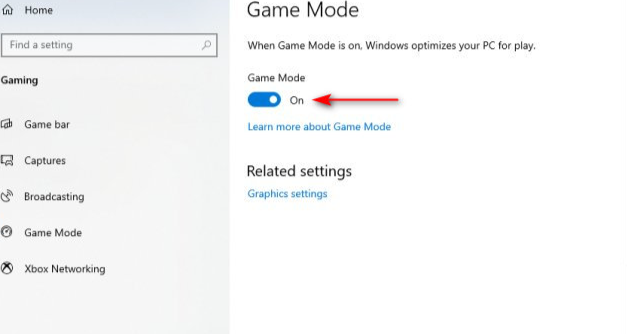
Enable Windows Game Mode:
Go to
Settings > Gaming > Game Modeand switch it On.Why it matters: This prevents Windows Update, background indexing, and secondary tasks from hogging CPU threads while a game is running.
Turn On Hardware-Accelerated GPU Scheduling (HAGS):
Go to
Settings > System > Display > Graphicsand toggle Hardware-Accelerated GPU Scheduling to On, then restart your PC.Why it matters: Passes frame-scheduling management directly to the GPU, reducing CPU overhead and improving frame-time consistency.
Configure Variable Refresh Rate & Optimizations for Windowed Games:
In the same
Display > Graphicsmenu, enable Optimizations for windowed games.Why it matters: Replaces legacy presentation modes with modern flip-model presentation, reducing input lag for games running in borderless windowed mode.
Set Power Plan to High Performance:
Press
Win + R, typepowercfg.cpl, and select High Performance or Ultimate Performance.Why it matters: Prevents the CPU from downclocking during light loads, eliminating micro-stutters caused by frequency shifting.
Disable Startup Apps and Background Overlays:
Open Task Manager (
Ctrl + Shift + Esc), navigate to Startup Apps, and disable heavy programs like OneDrive, Spotify, Epic Games Launcher, or Chrome.Disable unnecessary overlays (e.g., Discord Overlay, Steam Overlay, Xbox Game Bar) if you notice sporadic stuttering.
2. Fine-Tune In-Game Graphics Settings
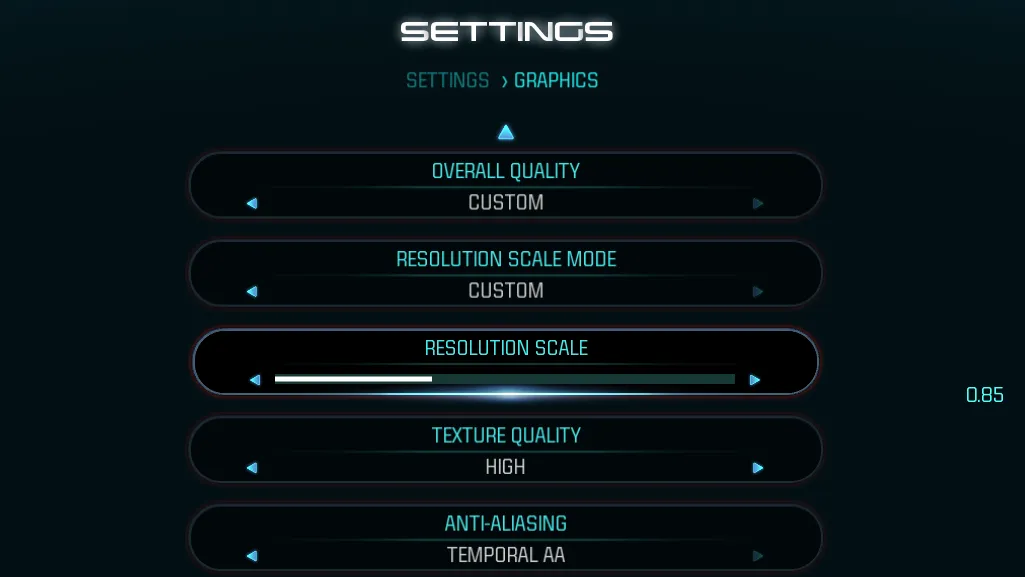
Indiscriminately lowering every graphic setting to "Low" is unnecessary. The goal is to drop high-impact settings that tax the hardware while keeping visual-fidelity settings high.
Extreme-Impact Settings (Lower or Disable):
Ray Tracing: Turn Off. Ray-traced reflections, shadows, and global illumination cut frame rates by 30% to 60%.
Volumetric Fog / Clouds: Set to Medium or Low. Volumetric rendering relies heavily on complex GPU shaders with minor visual payoff during active gameplay.
Screen Space Reflections (SSR): Set to Medium. High-quality SSR causes rendering bottlenecks on mid-range GPUs.
High-Impact Settings (Lower to Medium):
Shadow Quality: Set to Medium. Dynamic shadows tax both the CPU and GPU. Moving from Ultra to Medium offers a massive FPS boost with minimal visual loss.
Ambient Occlusion (SSAO/HDAO): Set to Low or Medium.
Subsurface Scattering: Set to Medium or Off in competitive shooters.
VRAM & Visual Clarity Settings (Keep High):
Texture Quality: Keep on High or Ultra, provided your GPU has sufficient VRAM (e.g., 8GB+ for 1080p/1440p). Textures affect VRAM capacity, not GPU processing speed.
Anisotropic Filtering / Texture Filtering: Set to 16x. It carries virtually zero performance penalty on modern GPUs while keeping distant textures sharp.
Clarity Filters (Disable):
Turn off Motion Blur, Depth of Field, Film Grain, and Chromatic Aberration. Disabling these removes artificial post-processing blur, improving image clarity and freeing up minor rendering overhead.
3. Leverage AI Upscaling and Frame Generation
Modern upscalers render the game internally at a lower resolution and use spatial or temporal AI algorithms to output to your monitor's native resolution.
NVIDIA DLSS / AMD FSR / Intel XeSS:
Quality Mode: The sweet spot. Renders at ~67% native resolution, delivering a 20%–40% FPS increase with image quality that often rivals native rendering.
Balanced Mode: Ideal for 4K displays or mid-range GPUs targeting high refresh rates.
Performance Mode: Use primarily on 4K displays or when severely GPU-bound. Avoid on 1080p, as it can result in visual artifacts and blurriness.
Frame Generation (DLSS 3 / FSR 3 / AFMF):
Synthesizes entire artificial frames between rendered ones to double perceived fluidity.
Rule of thumb: Only enable Frame Generation if your baseline performance is already at or above 50–60 FPS. Enabling it on low baseline frame rates increases input latency.
4. GPU Control Panel Optimization (NVIDIA & AMD)
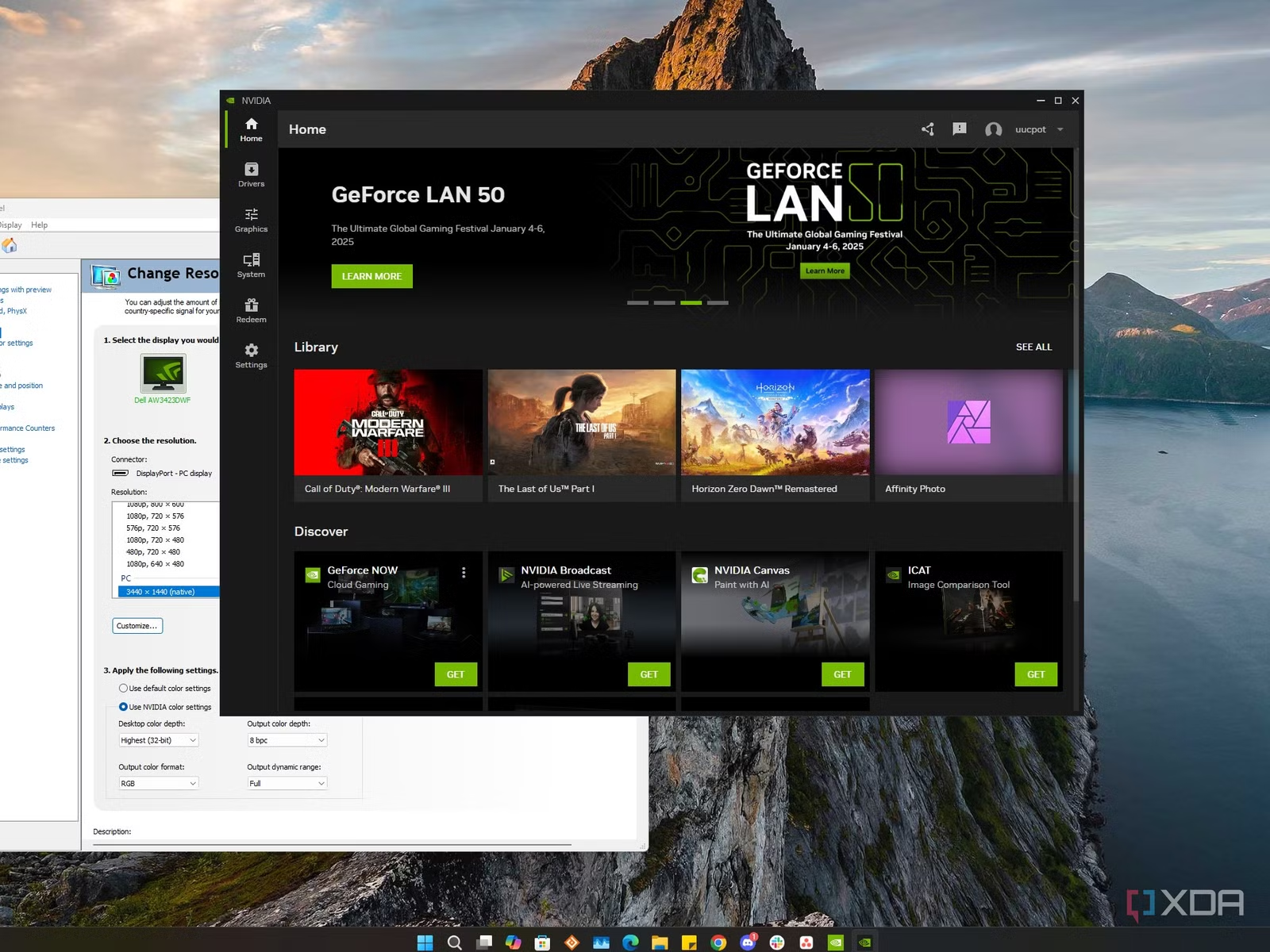
Adjusting global driver settings ensures your graphics card operates at peak efficiency across all titles.
NVIDIA Control Panel / NVIDIA App:
Manage 3D Settings > Power Management Mode: Set to Prefer Maximum Performance.
Low Latency Mode: Set to On (or Ultra if GPU-bound) to minimize input lag.
Max Frame Rate: Cap frame rates 3 FPS below your monitor's refresh rate (e.g., 141 FPS on a 144Hz screen) when using G-Sync.
Texture Filtering - Quality: Set to High Performance.
AMD Software: Adrenalin Edition:
Graphics Profile: Select Default or eSports.
Radeon Anti-Lag: Enable to reduce input latency.
Radeon Boost: Enable for dynamic resolution scaling during quick mouse movements in supported competitive games.
5. Monitor Setup & Latency Management
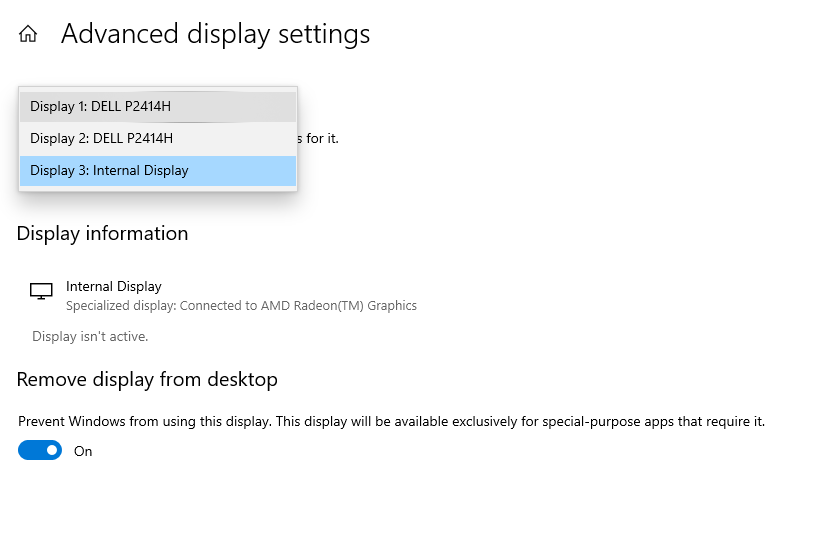
High FPS won't matter if your display settings or latency chain aren't configured properly.
Verify Display Refresh Rate:
Go to
Settings > System > Display > Advanced Displayand confirm your monitor is set to its highest supported refresh rate (e.g., 144Hz, 165Hz, 240Hz).Use a DisplayPort cable rather than HDMI where possible, as older HDMI standards limit high refresh rates and Variable Refresh Rate (VRR) features.
G-Sync / FreeSync + V-Sync Strategy:
Enable G-Sync or FreeSync in your GPU control panel to eliminate screen tearing without introducing input lag.
Turn V-Sync ON in your GPU Control Panel (not in-game) alongside G-Sync/FreeSync to prevent frame pacing tears at the very top of the monitor's refresh range.
NVIDIA Reflex / AMD Anti-Lag:
Always enable NVIDIA Reflex in supported games (On + Boost if your CPU is the bottleneck). This synchronizes CPU and GPU work queues to reduce systemic latency.
6. Prevent Thermal Throttling & System Maintenance
When components exceed thermal thresholds (typically ~85°C for CPUs and ~83°C for GPUs), they automatically reduce clock speeds to prevent hardware damage, causing sudden frame-rate drops.
Clean Hardware & Dust Filters: Clean dust buildup out of intake filters, radiator fins, and fan blades using compressed air every 3–6 months.
Optimize Laptop Airflow: Elevate the back of gaming laptops by 1–2 inches or use a cooling pad with dedicated fans to keep intake vents clear.
Monitor System Temps: Use tools like MSI Afterburner, HWiNFO64, or PresentMon to monitor CPU/GPU usage, temperatures, and frame-time consistency in real time.
Trim & Defrag Drives: Ensure your games are installed on an NVMe or SATA SSD rather than a traditional HDD. Open
Defragment and Optimize Drivesin Windows and run Optimize on your SSDs to maintain peak read/write speeds.
Comprehensive Optimization Checklist
[ ] Windows Game Mode and HAGS turned ON
[ ] Power Plan set to High Performance
[ ] GPU Drivers updated to the latest Game Ready release
[ ] Windows Display set to maximum supported refresh rate (e.g., 144Hz+)
[ ] DLSS / FSR / XeSS set to Quality mode in demanding titles
[ ] Shadows, Volumetrics, and Ray Tracing lowered in-game
[ ] Motion Blur, Depth of Field, and Film Grain disabled
[ ] NVIDIA Low Latency / Reflex or AMD Anti-Lag enabled
[ ] Games installed on an SSD with at least 15% free space
[ ] Windows Game Mode and HAGS turned ON
[ ] Power Plan set to High Performance
[ ] GPU Drivers updated to the latest Game Ready release
[ ] Windows Display set to maximum supported refresh rate (e.g., 144Hz+)
[ ] DLSS / FSR / XeSS set to Quality mode in demanding titles
[ ] Shadows, Volumetrics, and Ray Tracing lowered in-game
[ ] Motion Blur, Depth of Field, and Film Grain disabled
[ ] NVIDIA Low Latency / Reflex or AMD Anti-Lag enabled
[ ] Games installed on an SSD with at least 15% free space