
Think of Discord bots as an automated crew running behind the scenes of your server. Instead of you manually welcoming every member, moderating bad behavior, or trying to organize events single-handedly, bots step in to keep everything running smoothly 24/7.
Hands-off Moderation: Automatically delete dangerous links, filter out hate speech, and deal with spammers before you even wake up.
Smoother Onboarding: Give newcomers a warm greeting, show them the rules, and automatically assign them starter roles.
Community Engagement: Keep chat active with leveling systems, custom mini-games, trivia, and music.
Server Organization: Manage support tickets, run polls, schedule events, and post automatic updates from YouTube, Twitch, or Reddit.
Top Beginner-Friendly Bots (And What They Do Best)
You don't need a dozen bots, ca bloated server gets confusing fast. Picking one or two from this list will cover 90% of your needs:
Carl-bot (The Role & Log Master):

Best for: Giving members self-assignable roles through reaction emojis or buttons.
Key features: Highly customizable reaction roles, detailed server logs (tracks deleted messages and edits), and simple auto-moderation.
Why it's great: It's incredibly light, fast, and rarely goes offline.
MEE6 (The Visual Favorite):

Best for: Beginners who want a super easy, visual web dashboard.
Key features: Custom welcome images with the member's avatar, XP/leveling system that rewards active chatters, and social media notifications.
Why it's great: It requires zero technical knowledge to set up, though some features are locked behind a paid tier.
Dyno (The Powerhouse Moderator):

Best for: Keeping large or public servers safe and organized.
Key features: Advanced anti-spam, custom automated commands, timed bans/mutes, and a built-in music player.
Why it's great: It gives you total control over auto-moderation sensitivity and warning systems.
Apollo (The Event Planner):

Best for: Scheduling community events, game nights, or meetings.
Key features: Clean event sign-up embeds with simple RSVP buttons (Yes, No, Maybe), automatic time-zone conversion, and event reminders.
Why it's great: It eliminates the classic "What time is that in my timezone?" confusion for international members.
Ticket Tool (The Customer & Support Desk):

Best for: Handling private questions, staff applications, or user reports.
Key features: Allows members to click a button to open a private channel that only they and the server staff can see.
Why it's great: Keeps administrative chatter and sensitive user issues completely out of public chat channels.
Step-by-Step: How to Add Any Bot to Your Server
Adding a bot is completely web-based, you never download or run .exe files on your computer.
Step 1: Go to the Official Bot Webpage
Always use verified sites like
carl.gg,mee6.xyz,dyno.gg, or trusted bot directories liketop.gg.Tip: Never trust direct download links from random Discord messages.
Step 2: Hit "Invite" or "Add to Discord"
This will open a secure Discord browser pop-up asking you to authorize the connection.
Step 3: Select Your Target Server
Choose your server from the dropdown menu.
Note: You must either be the Server Owner or have a role with the Manage Server permission to add bots.
Step 4: Review and Grant Permissions
The bot will display a list of permissions it needs (e.g., Send Messages, Manage Roles, Embed Links).
Leave the necessary boxes checked, click Authorize, and solve the quick CAPTCHA.
Step 5: Configure via Web Dashboard
Once added, return to the bot's website. Log in with your Discord account to access its web dashboard, where you can toggle features using visual switches and dropdowns.
How to Use Bots Inside Discord
Interacting with bots used to require memorizing messy prefixes (like !help or ?mute). Today, almost every modern bot uses Discord's official Slash Commands.
Accessing Commands: Type a forward slash (
/) into any text channel box.The Command Menu: A popup menu will appear listing every bot in your server alongside their available commands.
Finding Specific Actions: Type the name of what you want to do (e.g.,
/poll,/warn, or/help) and press Enter.Bot-Specific Prefixes: A few legacy bots still use custom prefixes like
!or.. You can check their specific prefix by reading their web dashboard or typing/help.
Crucial Server Setup Rules for Bot Success
Setting up the bot is only half the battle, making sure Discord gives it the right permissions is what prevents errors.
Fix Your Role Hierarchy (The #1 Beginner Mistake):
Discord operates on a top-down chain of command. A bot cannot give a role to a user if that role sits above the bot's highest role in your Server Settings.
The Fix: Go to
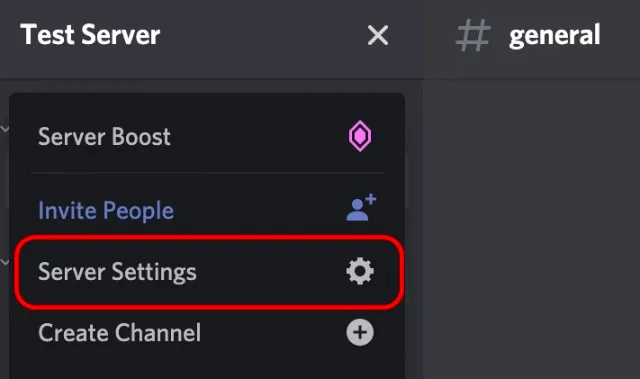
Server Settings > Roles, click and drag your Bot's role so it sits above general member roles, but below your Administrator/Owner role.
Create a Dedicated
#bot-commandsChannel:Prevent your main discussion channels from getting bogged down with bot spam.
Create a text channel named
#bot-commandsand adjust channel permissions so members are encouraged (or required) to run commands there.
Never Grant Unnecessary Administrator Rights:
Unless a bot absolutely requires full admin privileges to function, only check the specific permissions it needs. This protects your server if a bot's developer account ever gets compromised.
Avoid Bot Overcrowding:
Stick to 1–3 bots when starting out. If you add five different bots without tweaking their default settings, a single new user joining will trigger five different welcome messages at once!