
Twitch streaming has become a popular way for people to share their interests, entertain audiences, and build online communities. While Twitch is best known for gaming, creators now stream everything from music and art to cooking, fitness, education, and casual conversations.
If you’re thinking about starting your own Twitch channel, you may be wondering where to begin. The good news is that you don’t need expensive equipment or years of experience. With the right setup, a clear content idea, and some patience, you can start streaming and gradually build your audience.
Note
You don't need a professional studio or expensive equipment to start Twitch streaming. Begin with what you already have and upgrade your setup as your channel grows.
What Is Twitch Streaming?
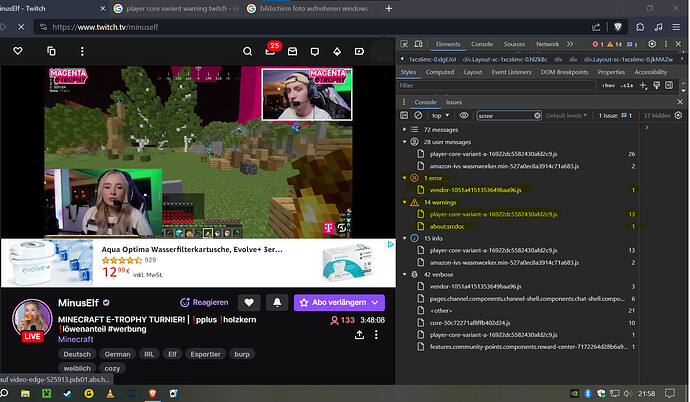
Twitch is a live-streaming platform where creators broadcast content in real time. Viewers can watch the stream, communicate through live chat, follow channels, and become part of online communities.
Gaming remains one of Twitch’s biggest categories, but the platform has expanded significantly. Categories such as “Just Chatting,” music, creative content, and educational streams allow creators to connect with audiences in different ways.
The most important thing is finding a type of content that you genuinely enjoy creating.
1. Create Your Twitch Account
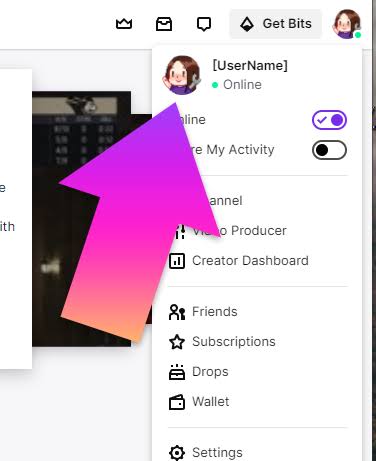
Your first step is to create a Twitch account and choose a username. Try to select something memorable, simple, and relevant to your online identity.
After creating your account, customize your profile. Add a profile picture, write a short biography, and explain what viewers can expect from your channel. You can also include links to your other social media profiles.
Your profile is often the first impression a new viewer gets, so keeping it clear and professional can help.
Tip
Choose a username that is easy to spell and remember. Avoid using unnecessary numbers or complicated characters if possible.
2. Choose Your Streaming Content
Before going live, decide what you want your channel to focus on.
Some popular Twitch content ideas include:
- Gaming: Stream yourself playing games and interacting with viewers.
- Just Chatting: Talk with your audience about everyday topics, news, hobbies, or personal interests.
- Creative content: Share drawing, painting, graphic design, writing, or crafting.
- Music: Perform songs, practice instruments, or produce music.
- Educational streams: Teach viewers a skill, language, software, or subject.
- Lifestyle and hobbies: Stream cooking, fitness, DIY projects, or other activities.
You don't have to stick to one category forever. However, having a general direction can make it easier for viewers to understand why they should follow your channel.
3. Get the Essential Equipment
You don't need a professional studio to start streaming. Your equipment should match your budget and the type of content you plan to create.
Computer or Console
For PC gaming, you'll need a computer capable of running your game and streaming software at the same time. Console users can also stream using compatible equipment and software.
Microphone
Audio quality is extremely important. Viewers are more likely to stay if they can hear you clearly. A basic USB microphone can be a good starting point.
Webcam
A webcam is optional. Showing your face can make streams feel more personal, but plenty of successful creators stream without cameras.
Headphones
Headphones allow you to monitor your audio and prevent your microphone from picking up sound from speakers.
Internet Connection
A stable internet connection is essential for live streaming. Your upload speed and connection stability can affect the quality of your broadcast.
4. Set Up Streaming Software
Streaming software brings everything together. It allows you to capture your game or screen, microphone, webcam, alerts, and other elements.
OBS Studio is one of the most popular free options for beginners.
After installing your streaming software, you'll generally need to connect it to your Twitch account, create a scene, add your screen or game capture, configure your microphone, and add your webcam if you use one.
Don't worry about creating an elaborate setup immediately. You can add features and improve your stream as you gain experience.
5. Test Everything Before Going Live
Technical problems are common when you're new to streaming. That's why testing your setup is essential.
Before your first broadcast, check whether:
- Your microphone is working properly
- Your game or screen is visible
- Your microphone isn't too loud or quiet
- Your game audio is balanced
- Your webcam is positioned correctly
- Your internet connection is stable
Consider making a test recording before going live. Watching the recording can help you spot problems you might not notice while streaming.
Warning
Don't spend a large amount of money on equipment before you've started streaming. Test your setup first and upgrade only when you know what you actually need.
6. Create a Consistent Schedule
Consistency can help you develop a loyal audience. You don't need to stream every day. Instead, choose a schedule that fits your lifestyle.
For example, you might stream two or three times a week for a few hours. Let viewers know when you're usually online by displaying your schedule on your channel and sharing announcements on social media.
A realistic schedule is better than promising to stream every day and quickly becoming exhausted.
7. Interact With Your Audience
One of the biggest advantages of Twitch is the ability to communicate directly with viewers.
Welcome people when they enter your stream, respond to questions, ask for opinions, and encourage conversations. Even if only a few people are watching, try to make the stream enjoyable and interactive.
Don't become discouraged by low viewer numbers at the beginning. Every large channel started with a small audience.
8. Keep Your Channel Safe
Online safety should always be a priority. Avoid sharing private information such as your home address, phone number, passwords, or financial details.
Set clear rules for your community and use Twitch's moderation features to deal with inappropriate behavior. As your channel grows, trusted moderators can also help manage your chat.
Creating a friendly and respectful community will make viewers more comfortable returning to your stream.
9. Promote Your Twitch Channel
Going live alone doesn't guarantee that people will discover your channel. Promoting your content outside Twitch can help you reach new viewers.
Consider sharing short highlights and entertaining moments on platforms such as YouTube, Instagram, TikTok, or other social networks. Collaborating with creators who have similar interests can also introduce your channel to new audiences.
Focus on creating useful or entertaining content rather than simply asking people to follow you.
10. Be Patient and Keep Improving
Growing on Twitch takes time. Instead of focusing entirely on follower numbers, look for ways to improve each stream.
Ask yourself:
- Was my audio clear?
- Did I interact with viewers?
- Was the content entertaining?
- Were there technical problems?
- Which moments received the most attention?
Small improvements can make a significant difference over time.
Conclusion
Starting a Twitch channel doesn't have to be complicated. Choose content you enjoy, use the equipment you already have, create a simple setup, and focus on connecting with your audience.
You don't need perfect graphics, expensive equipment, or thousands of viewers to begin. Your first stream is simply an opportunity to learn.
With consistency, creativity, patience, and genuine interaction, you can turn Twitch streaming from a hobby into a growing online community. The most important step is simple: start streaming and enjoy the journey.
Comments
Sign in to join the conversation
Sign inNo comments yet
Be the first to share your thoughts!